Import a Matterport E57 export
The E57 file holds every scan's points, position and panorama, which is all Spacery needs to rebuild the space.
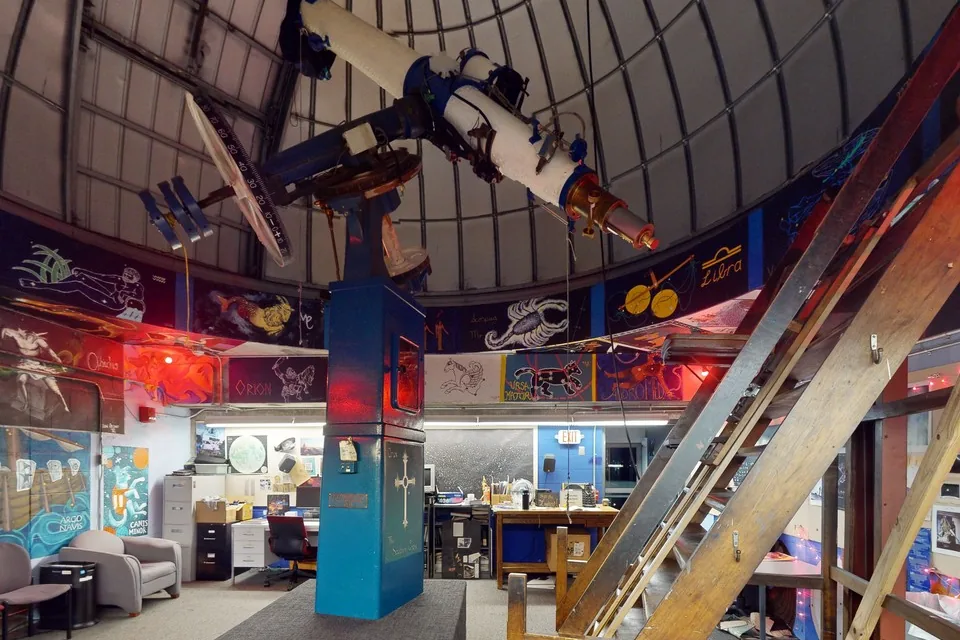 Matterport E57Loomis-Michael Observatory
Order the E57 from Matterport
It is a one-time add-on for each space.
Matterport offers the E57 on Professional plans and above, for spaces where every scan came from a Matterport Pro3, Pro2, Pro2 Lite or Pro1. Spaces captured with a 360 camera or a phone do not qualify.
Open the space in my.matterport.com, choose the E57 card on the Add-Ons tab and place the order. Matterport emails you when the file is ready, which takes from a quarter of an hour to a day depending on the size of the space. Download it from the space's Media tab while the space is still active.
Expect a big file, around 60 megabytes for every scan position from a Pro2 and about twice that from a Pro3.
Upload it to Spacery
Upload the ZIP just as Matterport sent it.
Add a space and drop the file on it, or ask your agent to send it from your computer. Uploads run in the background and pick up where they left off if the connection drops.
What Spacery builds
A walkable space that matches the original scan.
The importer reads each scan's position and the six images Matterport stores for it, so every panorama is placed and turned exactly as it was captured. It keeps real meters, fuses the measured points into a surface model of up to 50,000 triangles and checks every scan before the space is published.
Visitors walk from position to position, look around each panorama and pull back to a dollhouse view of the whole model.
Run it yourself
The importer is open source.
To convert spaces on your own computer, follow the Matterport migration guide in the SPHR repository. It covers setup, geometry conventions, quality checks and the files it writes.
No E57
There are two other ways in.
If your plan does not offer the E57, or you would rather not order it, paste the space's link or export the job from the Capture app instead.